
A Vodafone mobile broadband dongle connects a laptop or computer to the internet using Vodafone’s 4G or 5G mobile network. This provides a connection where fixed-line broadband is unavailable, making it a useful tool for working while travelling. This guide provides steps for setting up a USB dongle, managing your data, and using the specific back-up dongle supplied with Vodafone Pro Broadband.
What you need before you start
Before setting up your device, ensure you have the following:
- A Vodafone mobile broadband device: This could be a USB stick that plugs directly into your computer, such as the Vodafone K5161z, or a portable, battery-powered Mobile Wi-Fi hotspot that creates a small wireless network.
- A compatible computer: Most Vodafone dongles work with devices running modern versions of Windows and macOS. The K5161z, for example, is compatible with Windows 7, 8, and 10, as well as Mac OS X versions 10.6 to 10.11.
- A Vodafone data-only SIM: You will need a SIM card with an active data plan. Vodafone offers both Pay As You Go data packs and monthly plans for mobile broadband devices.
- Network coverage: You need to be in an area with a Vodafone mobile signal to connect to the internet.
How to set up a Vodafone USB dongle
The setup process for most modern Vodafone dongles is largely automatic. The following steps use the 4G-capable K5161z dongle as an example.
Step 1: Insert the SIM card
First, you must insert your active data-only SIM into the dongle. To do this, slide the cover off the device. The K5161z model requires a Micro SIM, which is the middle-sized option of the three standard SIM sizes. Align the notched corner of the SIM with the diagram on the dongle and slide it into the slot until it is secure. Once the SIM is in place, replace the cover.
Step 2: Connect the dongle and install software
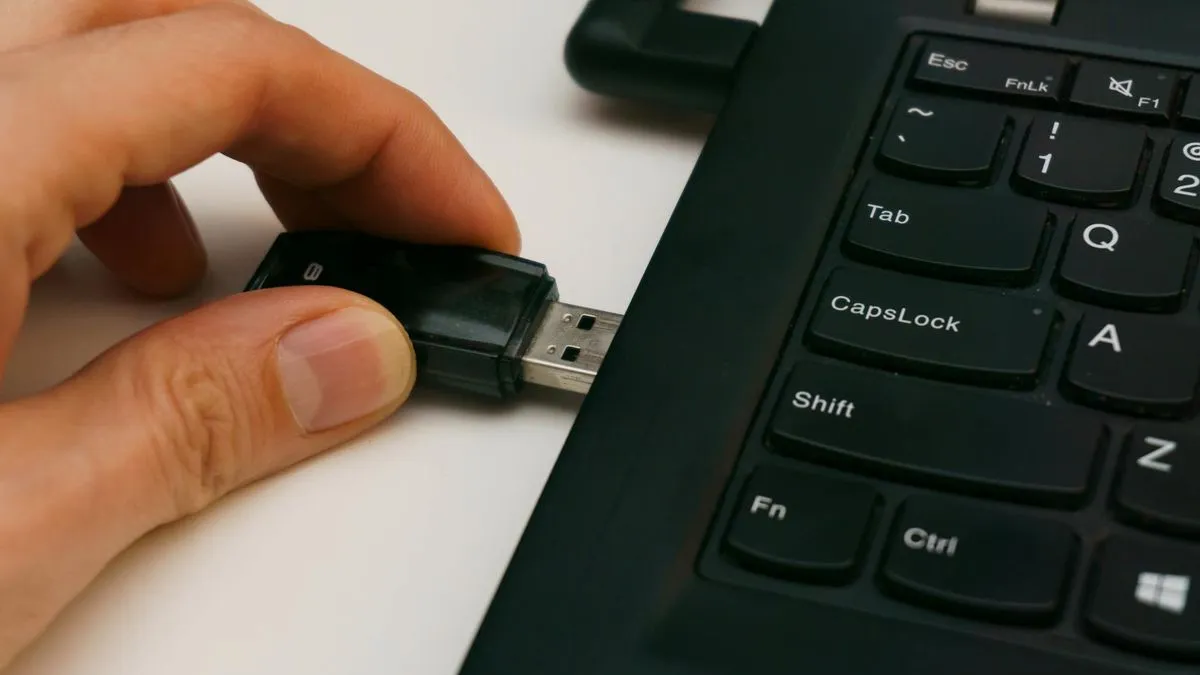
Plug the dongle firmly into a spare USB-A port on your laptop or computer. On Windows, the device should be detected automatically. If prompted to install software such as ‘VF QuickStart’ or ‘Vodafone Mobile Broadband’, follow the on-screen instructions.
Alternatively, the dongle may open your web browser and direct you to its administration page, which can often be found at the address http://vodafonemobile.vmb. This web-based interface allows you to monitor your connection status and change settings without installing separate software.
Step 3: Configure APN settings (if required)
In most cases, the dongle will configure the Access Point Name (APN) settings automatically. However, if you cannot connect to the internet, you may need to enter them manually. The correct settings depend on your plan type, according to Vodafone’s official guidance.
- For Pay As You Go customers:
- APN:
pp.vodafone.co.uk - Username:
wap - Password:
wap
- APN:
- For Pay Monthly customers:
- APN:
wap.vodafone.co.uk - Username:
wap - Password:
wap
- APN:
These settings can be entered in the network configuration section of the dongle’s software or web interface.
How to track your data usage
The easiest way to monitor your data allowance is with the My Vodafone app, which is available for both iOS and Android devices. After signing in with your account details, the app allows you to:
- Track usage: Check how much data you have used and how much remains in your monthly allowance or pre-paid data pack.
- Manage bills: View your latest bills and make payments directly within the app.
- Purchase add-ons: If you are running low on data, you can buy additional data packs.
- Access rewards: The app includes VeryMe Rewards, a loyalty programme offering weekly discounts and prize draws.
You can also manage your account by logging into the My Vodafone section of the official Vodafone UK website.
Using the Vodafone Pro Broadband back-up dongle
Customers with Vodafone Pro Broadband packages receive a 4G Broadband Back-up dongle. This device works differently from a standard mobile broadband dongle and is designed to provide an automatic internet connection if your fixed-line service fails.
To set it up, insert the provided SIM card and plug the dongle directly into the dedicated USB port on your Vodafone Wi-Fi Hub. The dongle should not be plugged into a computer. The hub will automatically configure the device. When your main broadband line is active, the internet light on the hub will be solid white. If the service is interrupted, the hub will automatically switch to the 4G mobile network, and the mobile light on the hub will illuminate to show it is active. A video guide is available on the official Vodafone UK YouTube channel.
Troubleshooting common issues
If you encounter problems, here are some steps to take:
- Check for signal: Ensure you are in an area with Vodafone mobile coverage. Connection quality can vary indoors, so try moving closer to a window.
- Verify your plan: Use the My Vodafone app to confirm your data-only SIM is active and has a remaining data allowance or an active plan.
- Re-check APN settings: If you entered the APN details manually, double-check that they match the official settings for your plan type.
- Contact support: If problems persist, you can contact Vodafone’s support team. The quickest way is often through the TOBi digital assistant in the My Vodafone app or on the website. You can also call 191 from a Vodafone mobile or 0333 304 0191 from any other UK phone.
Comments
0 comments
Loading comments…