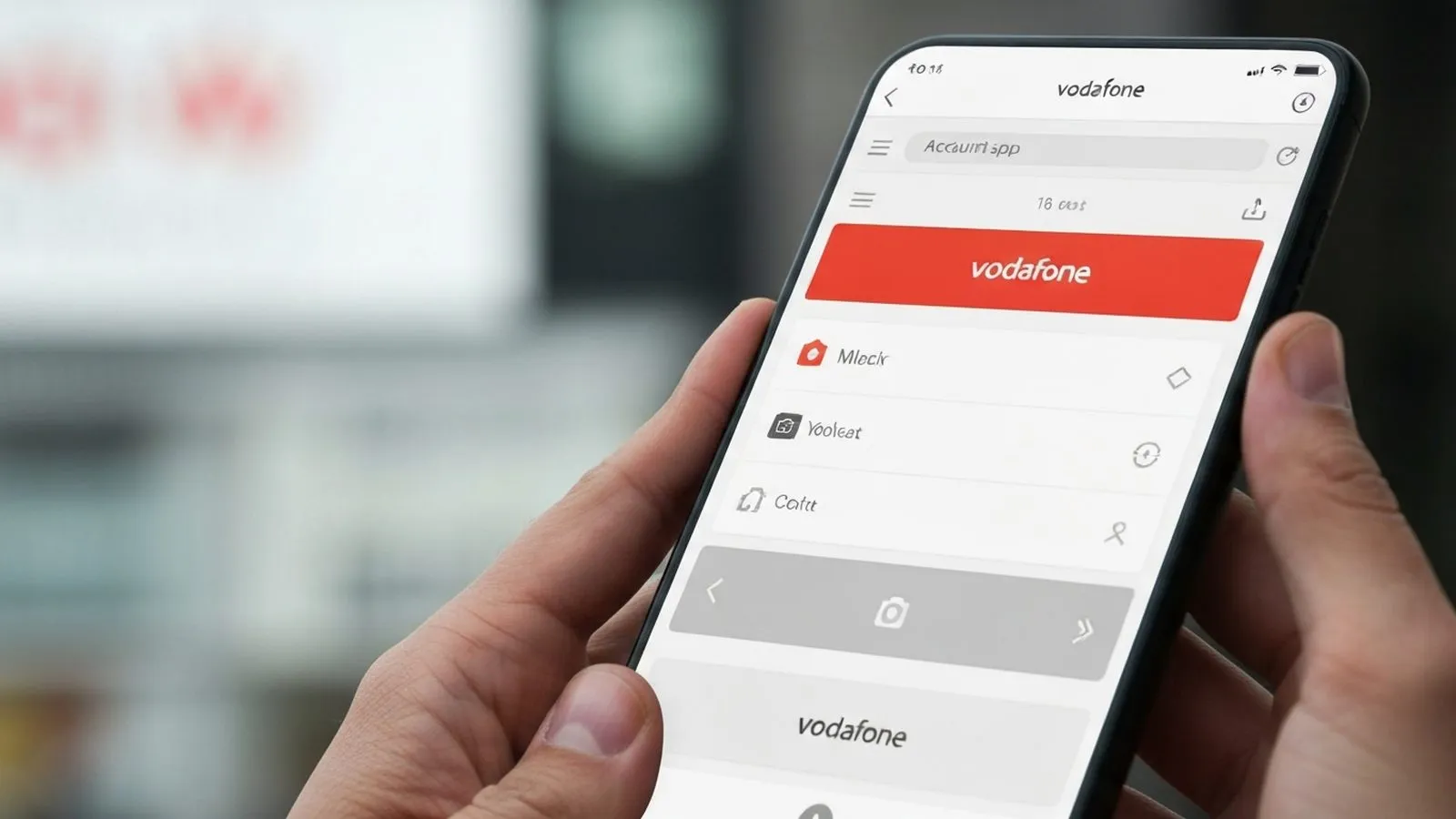
Logging out of the My Vodafone app is a simple but important step to protect your personal and account information. The process takes only a few moments and ensures that your details remain secure, particularly if your device is lost, stolen, or shared. This guide provides clear, verifiable steps for logging out on any smartphone and explains why it is a crucial security habit.
How to Log Out of the My Vodafone App
This procedure is based on the current interface for both iPhone and Android versions of the My Vodafone app in the UK as of May 2026.
- Open the My Vodafone App: Locate the red Vodafone icon on your phone's home screen or app library and tap to open it.
- Navigate to the Account Section: Once the app is open, look for an icon or tab labelled "Account" or "My Account". This is typically found in the bottom navigation bar of the app.
- Find the Log Out Option: In the Account section, you will need to scroll down. The "Log Out" or "Sign Out" option is usually located at the very bottom of the menu, past your plan details, usage summaries, and other settings.
- Confirm Your Decision: Tap the "Log Out" button. A confirmation prompt will appear to ensure you did not tap it by accident. Tap "Log Out" again to confirm.
The app will then close your active session and return you to the main login screen. Your account is not affected, and you can sign back in at any time using your credentials.
"If you don't tell [your network provider] straight away you might have to pay for any unauthorised phone calls, which can be very expensive." - Citizens Advice.
Why Logging Out is a Key Security Habit
Staying permanently logged into any application that contains personal data carries a degree of risk. For the My Vodafone app, this is particularly important as it is a gateway to sensitive information and account controls. An open session could potentially allow unauthorised access to:
- Personal Details: Your name, address, and contact information.
- Billing Information: Access to past bills, payment methods, and detailed call and data usage history.
- Account Management: The ability to change your plan, purchase add-ons, or alter account settings.
According to guidance from Police.uk, thieves actively target phones to gain access to personal data and bank accounts. Logging out of apps like My Vodafone is a fundamental step in securing your device. It is especially critical in the following scenarios:
- Lost or Stolen Phone: If your device is stolen, an active app session gives a thief immediate access to your account. Citizens Advice recommends contacting your network provider immediately to block the phone and prevent unauthorised charges.
- Sharing Your Device: If a friend or family member borrows your phone, logging out prevents them from accidentally viewing your private account information.
- Device Repairs: Before handing your phone to a repair technician, you should log out of all sensitive applications to protect your privacy.
The UK's communications regulator, Ofcom, is actively working to enhance consumer protection against mobile scams, highlighting the ongoing threats to mobile users. Regularly logging out is a proactive measure you can take to align with this best practice.
Troubleshooting Common Logout Issues
Occasionally, you may encounter an issue when trying to log out. Here are some common problems and their solutions:
Cannot Find the Log Out Button
If the log out option is not where this guide describes, it is likely you are using an outdated version of the app. Vodafone periodically updates the app's layout and functionality.
- Solution: Visit the App Store (for iPhone) or Google Play Store (for Android), search for "My Vodafone", and tap "Update". Once the update is complete, reopen the app and follow the logout steps again.
App is Unresponsive or Frozen
If the app freezes when you tap the log out button, you may need to force it to close.
- Solution for iPhone: Swipe up from the bottom of the screen to open the app switcher, then swipe up on the My Vodafone app to close it.
- Solution for Android: Open your recent apps screen (this varies by device, but is often a square icon or a swipe-up gesture) and swipe the My Vodafone app away.
- After force-closing, reopen the app. This often resolves the issue. If problems persist, a poor internet connection could be the cause.
- 50%: The proportion of UK mobile users who received a suspicious text or iMessage between November 2024 and February 2025, according to Ofcom.
- 7726: The number to forward scam text messages to in the UK. Mobile providers use these reports to block malicious numbers.
- 191: The number to call Vodafone customer service from a Vodafone mobile for free.
Frequently Asked Questions
What is the difference between logging out and uninstalling the app?
Logging out securely ends your session on the device but leaves the app installed for future use. Uninstalling removes the app and its data from your phone, but it does not necessarily end the active session on Vodafone's servers. For security, it is best to log out first, then uninstall.
If I log out on my phone, will I be logged out on my tablet too?
No. Logging out is device-specific. Each device maintains its own session, so you will need to log out separately on every phone or tablet where you have the app installed.
What should I do if I sold my phone without logging out?
You should immediately log into your My Vodafone account via the Vodafone UK website on a computer. From there, change your account password. This will invalidate previous login sessions and force any device still logged in to re-authenticate with the new password, securing your account.
How do I get help from Vodafone if I'm still having trouble?
Vodafone encourages customers to use its digital assistant, TOBi, via the My Vodafone app for support. You can also call them on 191 from your Vodafone mobile or 0333 304 0191 from another line.
Sources
- Vodafone UK - Contact Us
- Vodafone UK - My Vodafone App Information
- Citizens Advice - What to do if your mobile phone is lost or stolen
- Ofcom - Scam calls and messages
- Police.uk - Protect your mobile phone
Comments
0 comments
Loading comments…