What Vodafone says about activation times
Vodafone broadband can take up to 10 working days to activate after you place your order. That figure covers the full range of connection types, from standard ADSL over an existing phone line to full-fibre (FTTP) installations that require new cabling into the property.
For simpler setups where an active line already exists, the process may complete in as little as 24 to 48 hours. Vodafone will give you a confirmed activation date when you complete your order, and that date is the clearest guide to what to expect.
Ofcom’s broadband tips for consumers advise checking your provider’s stated activation window before signing up, and keeping a record of your agreed go-live date in case a compensation claim becomes relevant later.
Why activation takes up to 10 working days
The time required is not arbitrary. Several steps happen between your order and a live connection.
First, Vodafone has to provision your account on the network. This means allocating the technical resources, configuring your line profile, and scheduling any necessary work on the local exchange or street cabinet.
Second, if an engineer visit is required (for a brand-new line or a full-fibre installation), an Openreach technician must be dispatched to your property and to the local exchange. Scheduling that visit and completing the physical work adds several days.
Third, once the physical connection is in place, the line must be tested and the signal quality confirmed before the service is handed over to you as active.
Each of these steps runs in sequence, which is why the total window can stretch across two calendar weeks.
Connections that need an engineer visit
A physical engineer visit is typically required when:
- Your property has never had a broadband or phone line installed before.
- You are ordering full-fibre (FTTP) broadband and your street or home has not previously been connected to the fibre network.
- There is a fault on the existing line that must be repaired before broadband can be delivered.
In these cases, Openreach (the network operator that installs lines on behalf of most UK broadband providers, including Vodafone) will attend your property during a morning or afternoon slot. You will need to be present or have someone at the address during that window. Once the engineer has finished, your router should come online within a few hours.
Connections that do not need an engineer visit
If your home already has an active BT phone line or an existing Openreach broadband connection, Vodafone can often activate your service remotely. No one needs to enter the property and the switch happens at the exchange level.
In this scenario, 24 to 48 hours is a realistic expectation, though Vodafone’s confirmed activation date remains the binding reference. Your router should connect automatically once the line goes live. If it does not, a simple restart (unplug for 30 seconds, then reconnect) usually resolves the issue.
What happens on activation day
On the day Vodafone has confirmed for your go-live, keep your router switched on and connected to the main phone socket or fibre connection point. The service is activated remotely and your router will begin negotiating the connection automatically.
Signs that activation is in progress include the broadband light on your router flashing rather than remaining solid. Once the light is solid (usually white or green, depending on your Vodafone router model), the connection is live and you can connect your devices.
If an engineer visited earlier that day, the engineer will usually confirm before leaving that the line is active and the router is connecting correctly.
What to do if your broadband has not activated on time
If your activation date passes and the service is still not live, take these steps.
- Restart your router and wait 15 minutes before checking again.
- Check the Vodafone My Broadband app or your online account for any status messages or updated dates.
- Call Vodafone customer support. The residential broadband support number is listed in your welcome email and on vodafone.co.uk.
- If Vodafone cannot resolve the issue promptly, note the dates and times of all contact. This record supports any compensation claim.
Under Ofcom’s automatic compensation scheme, Vodafone is required to pay customers a set daily amount if it misses an agreed installation date or fails to repair a total loss of service within two working days. Compensation is applied automatically to your bill and you do not need to make a formal claim, though contacting the provider is still advisable to flag the issue.
Your rights if problems persist
If Vodafone cannot resolve the activation problem and you remain in dispute, you have the right to escalate to an independent Alternative Dispute Resolution (ADR) scheme after eight weeks, or sooner if Vodafone issues a deadlock letter. Vodafone is a member of the Communications Ombudsman scheme. You can contact the ombudsman via ombudsman-services.org.
Ofcom also maintains a complaints process for cases where a provider appears to be breaching its licence conditions. Details are at ofcom.org.uk.
Setting up your router once broadband is live
Once your Vodafone broadband is active, setup is straightforward.
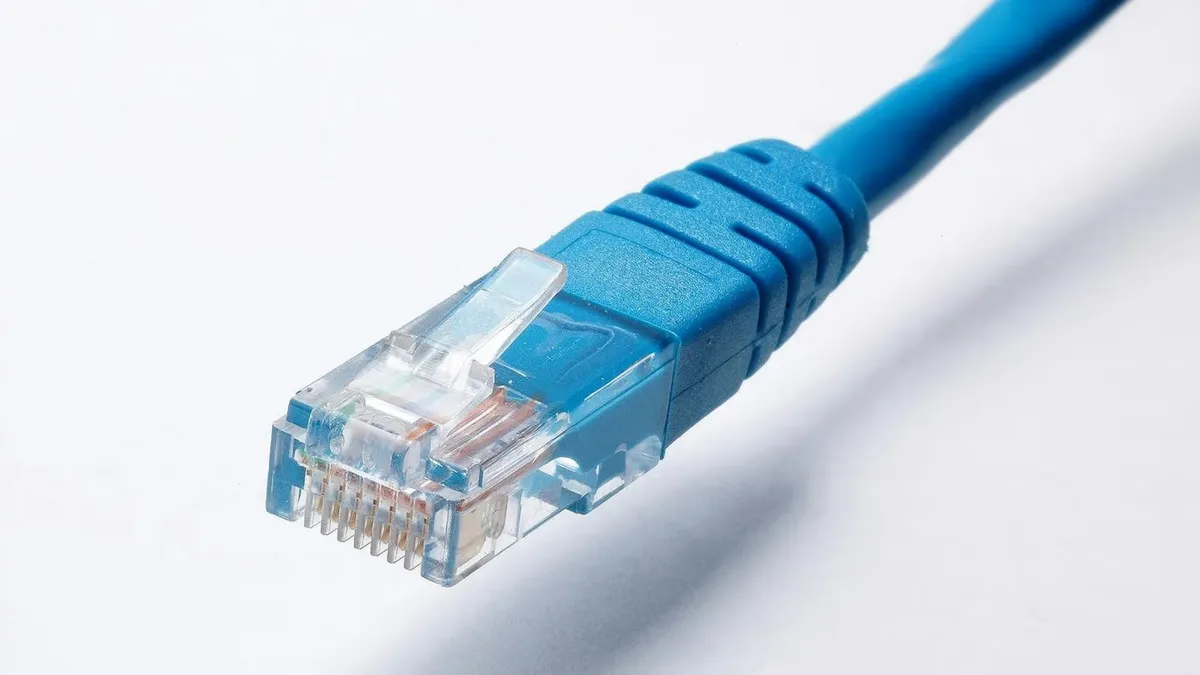
- Connect the supplied Vodafone router to your main phone socket using the grey DSL cable (standard broadband) or to the fibre connection point using the supplied Ethernet cable (full-fibre).
- Plug the router into the mains and switch it on.
- Wait two to three minutes for the router to fully boot and negotiate the connection.
- Connect your devices to the Wi-Fi network printed on the label on the base of the router, using the password shown there.
- You can change the network name and password through the Vodafone router settings page, accessible at
192.168.0.1from any connected device.
If you are replacing an existing router, the process is the same. The new router will authenticate against your line automatically.
For more guidance on getting connected, see our article on how to set up your home broadband router or browse the Mobile and broadband how-to hub for related guides.
Comments
0 comments
Loading comments…