
What a router-level VPN actually does
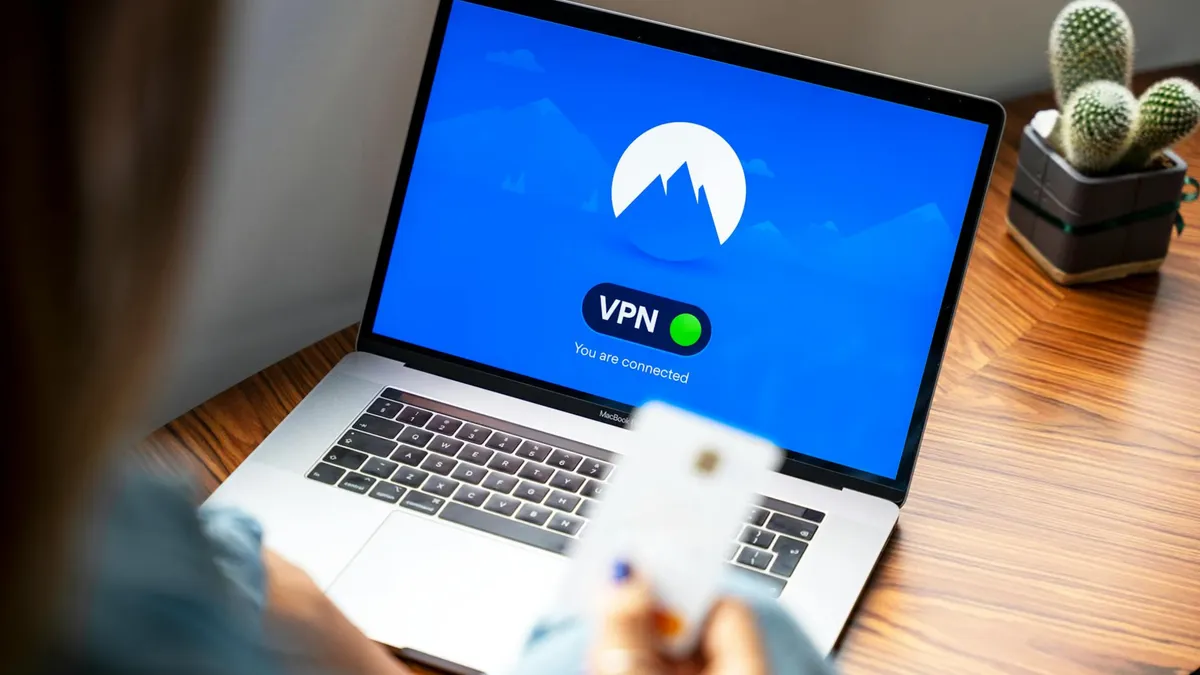
A VPN (Virtual Private Network) encrypts your internet traffic and routes it through a server in a location of your choice before it reaches its destination. When you install a VPN on your router rather than on a single device, every gadget connected to your home Wi-Fi benefits automatically: smart TVs, games consoles, tablets, and any device that cannot run a dedicated VPN app.
The NCSC (National Cyber Security Centre) notes that VPNs are a recognised tool for protecting data in transit, particularly on networks outside your control. At home on a Vodafone connection, the main reasons people set one up are privacy from third-party tracking, accessing geo-restricted content, and securing all household devices in one step.
Using a VPN is legal in the UK. The ICO recognises privacy tools as part of consumers’ online rights, and Ofcom does not restrict their use on regulated broadband services.
Check whether your Vodafone router supports VPN client mode
Before you buy a VPN subscription, confirm whether your specific router model can act as a VPN client (meaning it connects to a VPN server on your behalf). This is distinct from VPN server mode, which lets you connect back into your home network from outside.
Common Vodafone-branded routers in the UK and their VPN client support status:
| Router model | VPN client support (built-in) |
|---|---|
| Vodafone Ultra Hub (EasyBox 904) | No native VPN client tab |
| Vodafone Wi-Fi Hub (Connect Box) | No native VPN client tab |
| Vodafone Gigacube | No native VPN client tab |
| Third-party routers on Vodafone broadband | Varies by model |
Most Vodafone-supplied routers do not include a built-in VPN client interface. If yours does not, you have three options: flash the router with third-party firmware (see below), place a second VPN-capable router behind the Vodafone hub, or connect a VPN-enabled travel router to one of the hub’s LAN ports.
Option 1: Use a second router behind your Vodafone hub
This is the safest method because it does not touch the Vodafone router at all.
- Purchase a router that supports OpenVPN or WireGuard as a client. Popular choices in the UK include the GL.iNet Beryl, Asus RT-AX series, or Netgear Nighthawk (figures on specific model compatibility pending verification with each manufacturer).
- Connect the second router’s WAN port to a LAN port on your Vodafone hub using an Ethernet cable.
- Log into the second router’s admin panel (typically
192.168.8.1for GL.iNet devices,192.168.1.1for Asus). - Navigate to the VPN section and select “VPN Client” or “OpenVPN Client.”
- Download the configuration file (.ovpn) from your VPN provider’s dashboard.
- Upload the config file, enter your VPN username and password, and save.
- Enable the VPN client and confirm the connection status turns green.
All devices connected to the second router’s Wi-Fi will now tunnel through the VPN. Devices connected directly to the Vodafone hub will not.
Option 2: Flash your Vodafone router with DD-WRT or OpenWrt
Some Vodafone routers use hardware that is compatible with open-source firmware such as DD-WRT or OpenWrt, which do include full VPN client support. This method gives you the most control but carries real risks.
Important caveats before you proceed:
- Flashing third-party firmware almost certainly voids your router’s warranty.
- An unsuccessful flash can permanently brick the device.
- Vodafone’s technical support will not assist with a router running third-party firmware.
- You will lose access to any Vodafone-specific hub features such as the parental controls portal.
If you still wish to proceed:
- Visit the DD-WRT router database or OpenWrt Table of Hardware and search for your exact router model number (printed on the label underneath the device).
- If your model is supported, download the correct firmware file. Using the wrong file can brick the device.
- Access your router’s admin panel and navigate to Administration, then Firmware Upgrade.
- Upload the DD-WRT or OpenWrt file and wait for the router to reboot. Do not interrupt power during this process.
- Once the new firmware is running, log in to the new interface (default is often
192.168.1.1). - Navigate to Services, then VPN, and enter your VPN provider’s OpenVPN or WireGuard details.
Option 3: Configure VPN passthrough on your Vodafone router
If you are running a VPN server elsewhere on your network (for example, on a NAS or a Raspberry Pi) and want incoming VPN connections to reach it, you need to enable VPN passthrough and set up port forwarding on your Vodafone hub.
- Log into your Vodafone router admin panel. The address is usually printed on the label on the back of the hub.
- Locate the Firewall or Advanced settings section.
- Enable IPsec passthrough, PPTP passthrough, or L2TP passthrough depending on the protocol your VPN server uses.
- Under Port Forwarding, create a rule forwarding the relevant port to the internal IP address of your VPN server (for example, UDP 1194 for OpenVPN, UDP 51820 for WireGuard).
- Save and reboot.
This method does not encrypt your outbound traffic. It only allows VPN connections from outside your home to reach a server inside it.
Choosing a VPN provider compatible with router setup
Not every VPN provider supports router-level configuration. When selecting a provider for a UK home network, check for the following:
- OpenVPN or WireGuard support. These are the most widely supported protocols on third-party router firmware. Avoid providers that only offer proprietary apps with no manual config files.
- .ovpn or WireGuard config file downloads. You need these to configure the router manually.
- No simultaneous connection cap that would exclude router use. Some providers count a router as one device; others count every device behind it.
- UK server availability. If you are accessing UK-only content, confirm the provider has servers based in the United Kingdom.
Do not rely on free VPN services for router-level use. The NCSC advises caution with free VPN providers, noting that some log and sell user data, which defeats the privacy purpose entirely.
Troubleshooting: VPN not connecting on Vodafone broadband
If your VPN connection fails after setup, work through these checks in order:
- DNS leak or blocking. Try changing your router’s DNS servers to
1.1.1.1(Cloudflare) or8.8.8.8(Google) in the WAN settings of your Vodafone hub. Some default ISP DNS configurations interfere with VPN handshakes. - Port blocked by firewall. Confirm the port your VPN uses (UDP 1194 for OpenVPN, UDP 51820 for WireGuard) is not blocked in the Vodafone hub firewall. Create an outbound allow rule if necessary.
- Wrong config file. Ensure you downloaded the config file for the correct server region and protocol from your VPN provider’s dashboard.
- Router processor overload. If your router is a low-powered model, OpenVPN may exceed its CPU capacity. Switch to WireGuard, which is significantly less demanding.
- Vodafone service status. Check Vodafone’s network status page to rule out a broadband outage.
Vodafone does not officially block VPN protocols on its consumer broadband products. If you continue to experience difficulty, contact your VPN provider’s support team rather than Vodafone, as the issue is almost always on the VPN configuration side.
Security and privacy considerations for UK consumers
Installing a VPN at router level does improve the privacy of your home network, but it is not a complete security solution. The NCSC recommends keeping all connected devices patched and updated regardless of whether a VPN is in use.
Key points to keep in mind:
- A VPN encrypts traffic between your router and the VPN server. It does not protect you from malware already on a device, nor from phishing attacks.
- Your VPN provider can see your traffic in place of your ISP. Choose a provider with a verified no-logs policy and ideally one that has been independently audited.
- The ICO sets out your rights regarding data collected by services you use. A VPN does not override the data practices of websites and apps you visit.
- If you use a VPN to access streaming services, check those services’ terms of use. Bypassing geographic restrictions may breach your subscription agreement with the provider.
For further reading on keeping your home broadband secure, see our guide to Vodafone broadband security settings and the broader Mobile and broadband how-to hub.
Comments
0 comments
Loading comments…