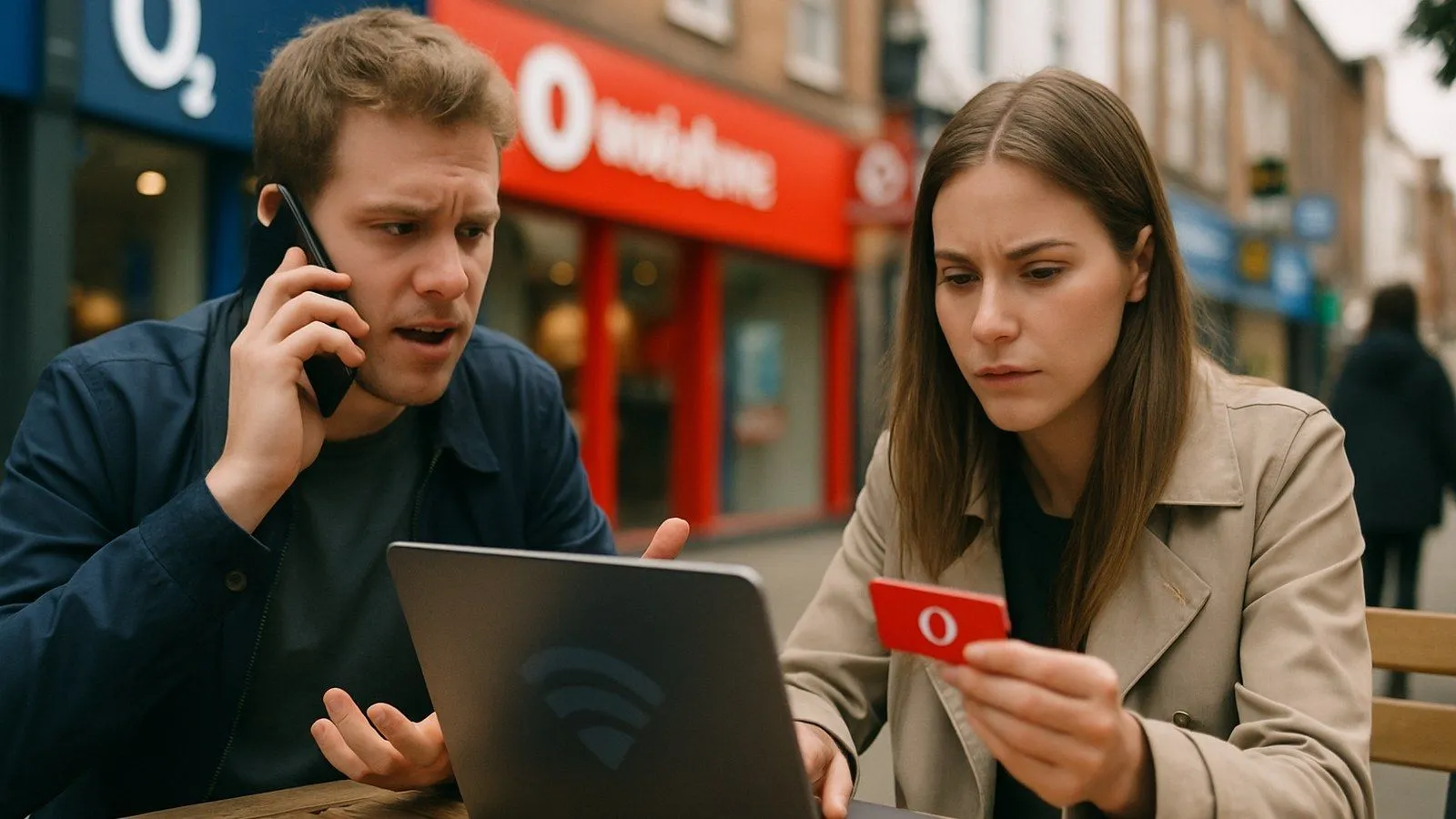
If your VPN isn't connecting on Vodafone broadband, the most common cause is the network's default content filtering system. Vodafone does not intentionally block VPN services, but its content controls can interfere with the encrypted traffic that VPNs use. The solution for most residential customers is to adjust these settings in your My Vodafone account.
This issue affects residential broadband users across the UK. It can be particularly noticeable for new customers or anyone who has recently had their account settings reset to default.
Why Vodafone’s Content Filters Interfere with VPNs
All major UK internet service providers, including Vodafone, offer network-level filtering to help parents restrict access to age-inappropriate content. This is part of a broader initiative under the UK's Online Safety Act. Vodafone's system applies content restrictions by default on new residential broadband accounts.
These filters work by inspecting and categorising website traffic. When you use a VPN, your internet connection is encrypted, creating a secure tunnel for your data. Network-level filters can struggle to classify this encrypted traffic because they cannot see inside the tunnel. As a precaution, the system may block the connection entirely. The filter is not targeting VPNs as malicious; rather, the VPN's encryption is incompatible with the filter's method of content inspection.
This is a documented issue across UK ISPs. VPN providers including Surfshark have noted that content filters on networks such as Vodafone and BT can cause connection problems for their users.
Step-by-Step Guide to Adjusting Your Filter Settings
Resolving VPN connection problems typically requires disabling or changing the level of Vodafone's content filtering through your online account. Here's how to do it.
1. Log in to Your My Vodafone Account
Go to the [Vodafone UK website](https://www.vodafone.co.uk/) and sign in to your My Vodafone account using the email address and password linked to your broadband service. If you haven't registered for online access yet, you'll need to create an account first.
2. Navigate to Broadband Settings
Once logged in, find the section for managing your home broadband. This may be labelled "Broadband Settings", "My Products", or something similar. Click through to access the detailed settings for your connection.
3. Locate and Modify Content Controls
Look for an option called "Content Controls", "Age Restriction", or "Vodafone Secure Net". This is where you manage network-level filtering. You'll typically see several predefined levels (such as settings for young children or teenagers) and an option to turn the feature off entirely.
To ensure your VPN can connect without interference, select the option that disables all content filtering. This is usually labelled "Off" or "Allow all content". Save your changes. The update can take a few minutes to apply across the network. Restarting your router can sometimes speed up the process.
Important: Disabling these filters removes all network-level content blocking for every device connected to your home Wi-Fi. If you rely on these settings to create a safer online environment for children, consider alternative parental control solutions (such as device-level apps or router-based controls) before turning them off.
What to Do If the Problem Persists
Contact Vodafone Support Directly
If you've followed the steps above and your VPN still won't connect, or if you can't find the content control settings in your account, contact Vodafone customer support. You can find contact options, including phone numbers and online chat, on the [Vodafone Support website](https://support.vodafone.co.uk/). When you speak to an agent, explain clearly that you believe the network's default content filter is blocking your VPN connection and that you've been unable to disable it online.
Vodafone's support team can make changes to your account remotely if the online portal isn't working for you.
Check Your VPN Provider’s Settings
Some VPN providers offer specific protocols or server options designed to work better with restrictive networks. Check your VPN app's settings for options like "obfuscated servers" or protocols such as WireGuard or OpenVPN. Your VPN provider's support documentation may have specific guidance for UK ISPs.
Router and Firewall Settings
In rare cases, your Vodafone router's built-in firewall may have additional settings that interfere with VPN connections. You can access your router's admin panel by typing its IP address (usually 192.168.1.1 or 192.168.0.1) into a web browser while connected to your home network. The login credentials are typically printed on a sticker on the router itself.
Look for firewall or security settings and ensure that VPN traffic (often using ports 1194, 500, or 4500) is not being blocked. If you're not comfortable making these changes yourself, ask Vodafone support for guidance.
Business Broadband Customers: Different Rules Apply
If you're a Vodafone Business broadband customer, the consumer-level content controls described in this article do not apply to your service. Business accounts use different security platforms, such as the Secure Network Gateway or dedicated IP-VPN services.
Business customers experiencing VPN issues should contact their dedicated Vodafone Business support representative rather than following the consumer troubleshooting steps above.
Why This Issue Is So Common
The tension between content filtering and VPN use is not unique to Vodafone. It's a structural issue across UK broadband providers. Filters need to inspect traffic to categorise it, but VPNs are designed specifically to prevent that inspection. This creates an inherent conflict.
Most UK ISPs have opted for a default-on approach to content filtering, meaning new customers are automatically enrolled unless they actively opt out. This policy stems from government guidance aimed at protecting children online, but it can create unexpected technical problems for users who rely on VPNs for work, privacy, or accessing region-restricted content.
The good news is that the fix is straightforward once you know where to look. Vodafone's My Vodafone portal gives you full control over these settings, and the company's support team can assist if you encounter any difficulties.
Additional Resources
For more information about managing your Vodafone broadband service, visit the [Vodafone News Centre](https://www.vodafone.co.uk/newscentre/), which provides updates on network changes, new features, and customer support resources.
If you're researching VPN providers, look for services that explicitly state they work with UK ISPs and offer multiple connection protocols. Many providers offer free trials or money-back guarantees, allowing you to test compatibility with your Vodafone connection before committing.

Comments
0 comments
Loading comments…