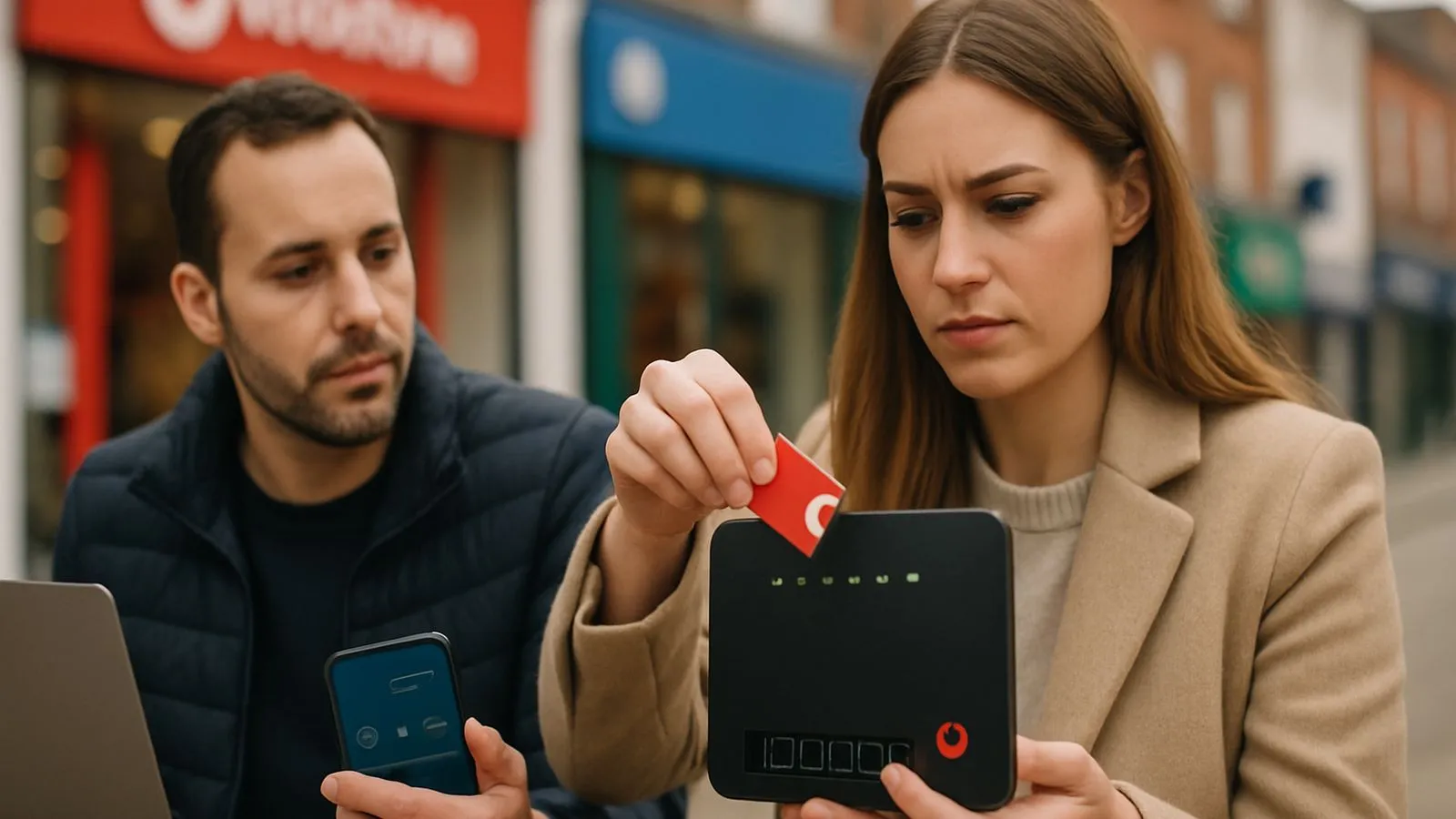
You can remove unwanted or unrecognised devices from your Vodafone WiFi network in several ways. The best method depends on your goal: you can use the Vodafone Broadband app for convenience, block specific devices permanently through your router's web settings, or change your WiFi password to disconnect every device at once. Each approach offers a different level of control over your home network's security and performance.
The Easiest Method: Using the Vodafone Broadband App
For most customers with part-fibre or full-fibre packages, the simplest way to manage your network is with the Vodafone Broadband app. This application provides a straightforward interface for viewing and controlling the devices connected to your WiFi without needing to log into a complex router menu on a computer.
To block a device using the app:
- Download and open the Vodafone Broadband app on your smartphone or tablet. It is available from the official app stores for iOS and Android.
- Log in using your My Vodafone account details.
- On the app's main dashboard, navigate to the section labelled either Connected Devices or My devices.
- You will see a list of all devices currently or recently connected to your network.
- Tap on the specific device you wish to remove to see more information and select the option to block it.
Customers with 5G Broadband should use the My Vodafone app for device management instead. Using the app is often the quickest and most convenient solution for day-to-day network management.
Blocking a Specific Device via the Router Web Interface
For a more permanent solution that prevents a specific device from ever rejoining your network (even if it has the password), you can block it using the router's web-based administration panel. This process, often called MAC address filtering, uses the unique hardware identifier of a device to deny it access. The exact steps vary depending on your router model.
For Most Fibre and 5G Outdoor Hubs
These routers typically use the IP address 192.168.1.1 for access.
- Connect a computer or phone to your Vodafone WiFi network.
- Open a web browser and type 192.168.1.1 into the address bar, then press Enter.
- Log in with your router's admin password. Unless you have changed it, this can be found on a sticker on the base or back of your router.
- From the drop-down menu at the top of the page, select Expert Mode.
- In the main menu banner, click on Internet.
- From the menu that appears on the side, choose Block Device.
- Select the device you want to remove from the list of connected devices and follow the on-screen prompts to apply the block.
For the Vodafone 5G Hub
The Vodafone 5G Hub uses a different IP address (192.168.0.1) and a different menu structure for blocking devices.
- Connect a device to your WiFi network, open a browser, and navigate to 192.168.0.1.
- Log in using the Web UI details printed on the base of your 5G Hub.
- Click the Advanced tab in the menu banner.
- Select WiFi from the options, and then choose MAC Filter.
- Set the 'MAC Filter Mode' to Black List and click Add.
- You will need to find and enter the MAC address of the device you wish to block. This is a 12-character code (e.g., 00:1A:2B:3C:4D:5E) usually found in the 'About' or 'Network Settings' section of the device itself.
- Paste the MAC address into the field, save the entry, and click Submit to block the device.
Removing All Devices by Changing Your WiFi Password
If you suspect an unauthorised person has gained access to your network or you simply want to perform a complete security reset, changing your WiFi password is the most effective method. This action will immediately disconnect all devices,both trusted and unwanted,from your network. You will then need to reconnect your own devices using the new password.
You can change your password through the Vodafone Broadband app or the router's web interface.
- Using the App: Open the Vodafone Broadband app, go to the WiFi section, tap the pencil icon to edit your settings, enter a new password, and tap the tick to apply the change.
- Using the Web Interface: Log into your router's admin panel (at
192.168.1.1or192.168.0.1depending on your model), navigate to the WiFi section, and find the option to change your password. Remember to save and apply the changes.
After changing the password, you must manually update it on every device you want to allow back onto the network, including phones, laptops, smart TVs, and games consoles.
Further Help and Support
Router interfaces can change with firmware updates, so the options you see may differ slightly from this guide. If you cannot find the settings described, the most reliable source for model-specific instructions is the official Vodafone Support Centre. If you have forgotten your router's admin password, you may need to perform a factory reset, but be aware this will erase all your custom settings, including your WiFi name and password, reverting them to the defaults printed on the router.
Comments
0 comments
Loading comments…